Implement Google Oauth2 in ASP.NET Core
Step 1: Create New Asp.net Core Project
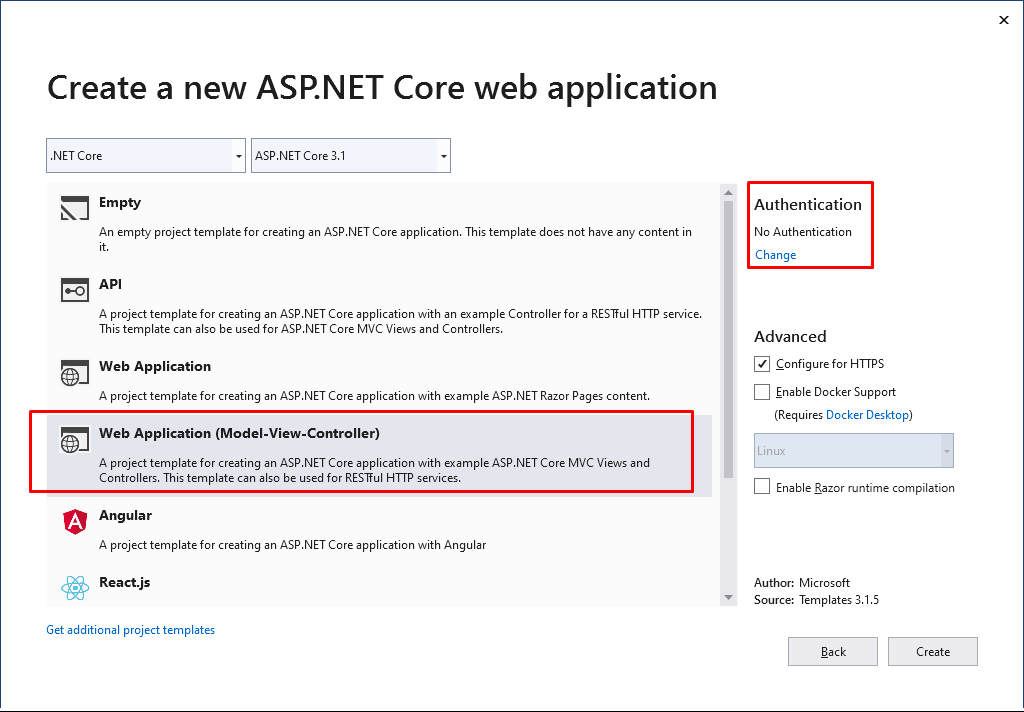
Open a visual studio, Create new project named ” Asp.Net core web application” or name of your choice, example “OauthGoogle”
Step 2: Create database with code-first approach
When we select the template, which has been given in step 1 there is already Identity class added to project, and now we have to create Database and their tables base on that identity class.
Before running the application, we need to apply migrations to our app
Go to Tools >> NuGet Package Manager >> Package Manager Console.
Enter ”Update-Database” and hit enter key . This will create identity tables.
Step 3: Get the application URL to use at Google App
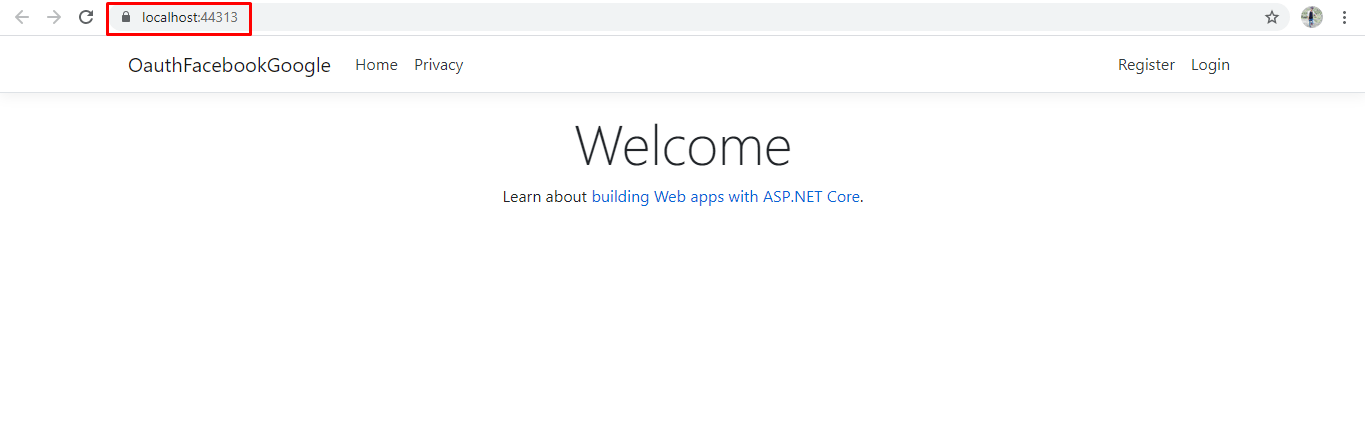
Now run your application will open the below screen.
Note the URL from the browser address bar. In this case, the URL is https://localhost:44360/ We need this URL to configure our Google app which we will be doing in our next step.
Step 4: Create a Google App
Navigate to https://console.developers.google.com and login using your Google account. If you do not have a Google account, you need to create one. You cannot proceed without a Google account.
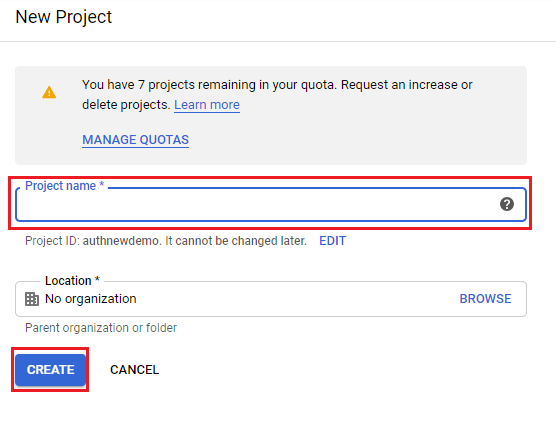
After clicking on the Create Project button then shown a popup window for Project name, where you can specify the name of the project where you can use the google API.
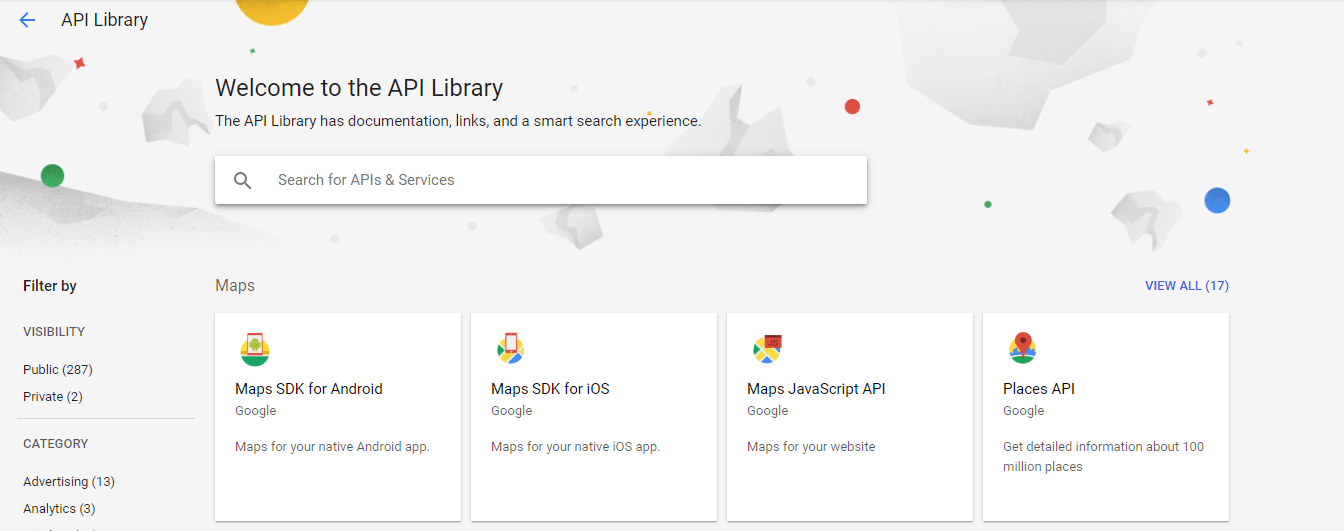
Step 5: Your project Create successfully and you will be redirected to API Library page
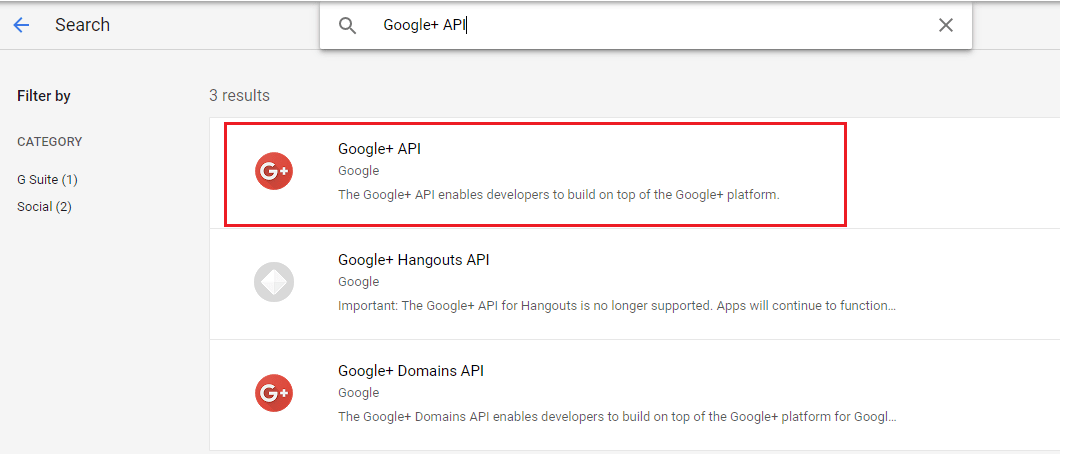
After that we need to Enable “Google+API” so we can search in search box and click on the highlighted “Google+API”
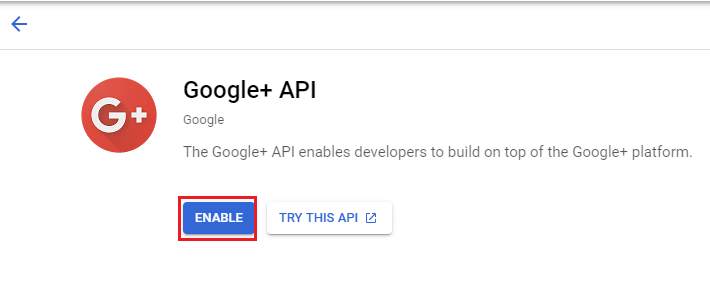
And Enable this Google+ API.
Step 6: Create Credentials
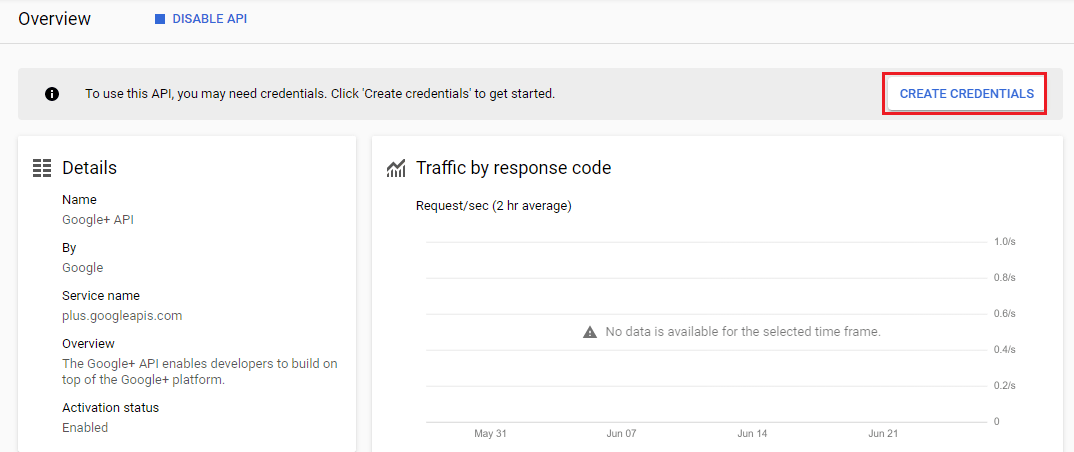
Once Goolge+API is enabled it will automatically redirect to API home page. From the API Home page Click on the “Create credentials” button on the right side of the page to configure the secrets for your API.
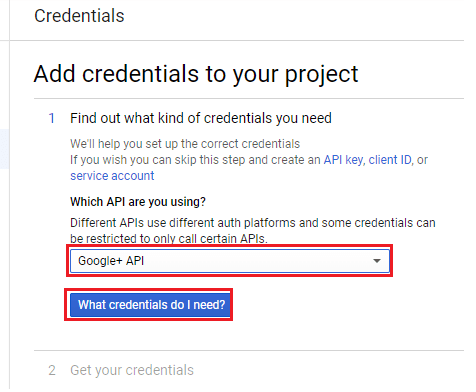
You will see an “Add credentials to your project” fill the following field
Step 7: Create External OAuth Consent Screen
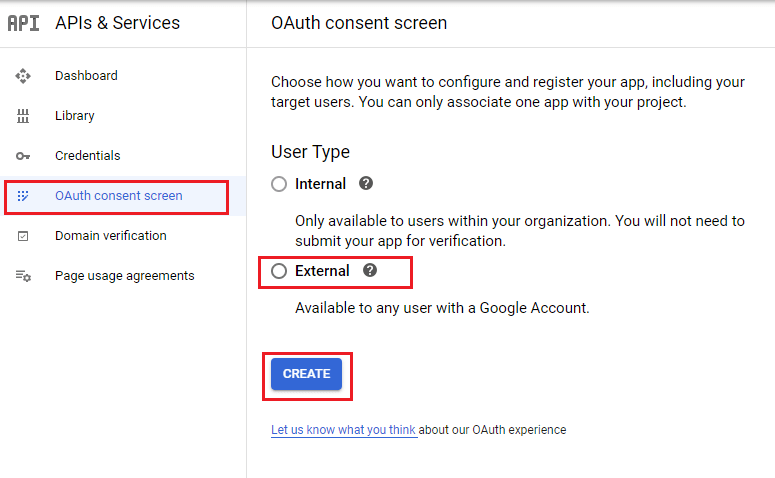
Now going to “OAuth consent screen” at the left side on the page and choose the External option and click on the create button
Step 8: Create Client Id and Client Secret
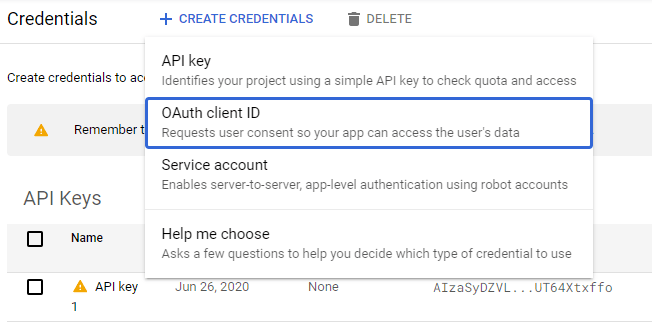
Select the “Credentials” menu from the left site and after that click on the "+Create credentials" on the highlighted in the snapshot and select OAuth Client Id options.
Step 9: Create Application Name and Redirect URI
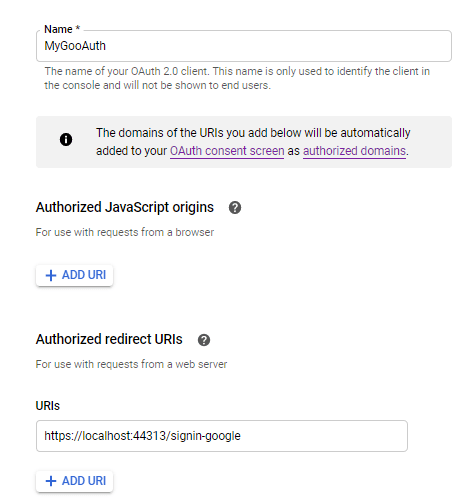
After click on the OAuth enter the “Application name, Authorized Javascript Origins(if required) and Authorized redirect URIs” and click on the Create button
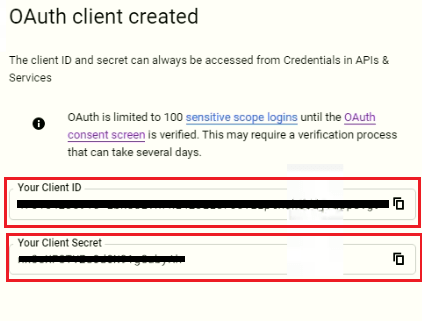
Click on the Create button you can see your “client Id and Client Secret” has been created.
Step 10: Add Client Id and Secret in Visual Studio Project
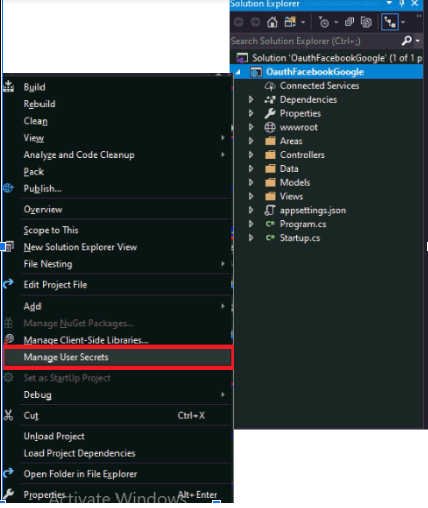
Now go to project and right click on the project and go to Manage User Secrets, Which Create the secrets.json.
Step 11: Setup the secrets.json and startup.cs
A secrets.json file will open put the following code in it
Now open startup.cs file and put the following code into ConfigureServices method
Step 12: Save and Run Application
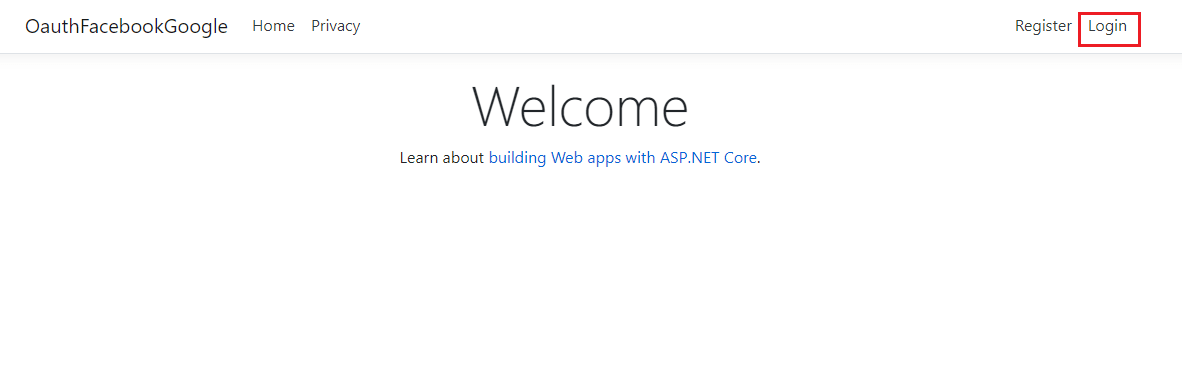
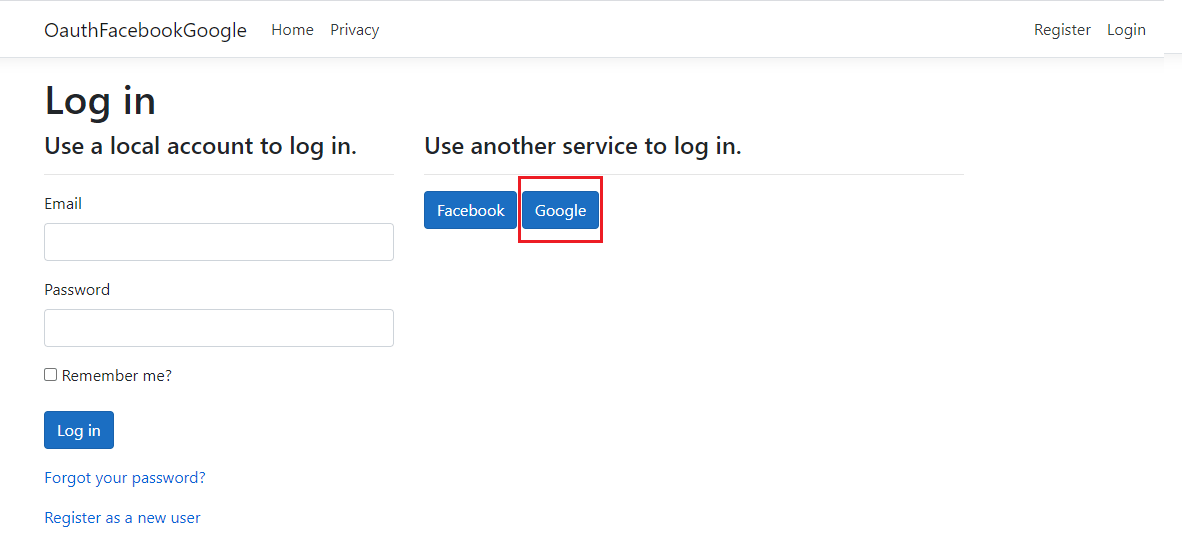
After clicking on the Login, you see Google button and click on this
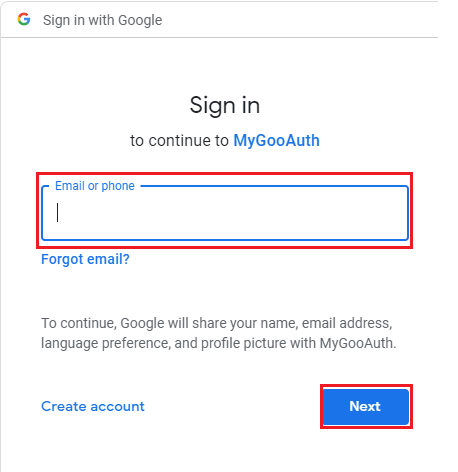
After that enter you Email account
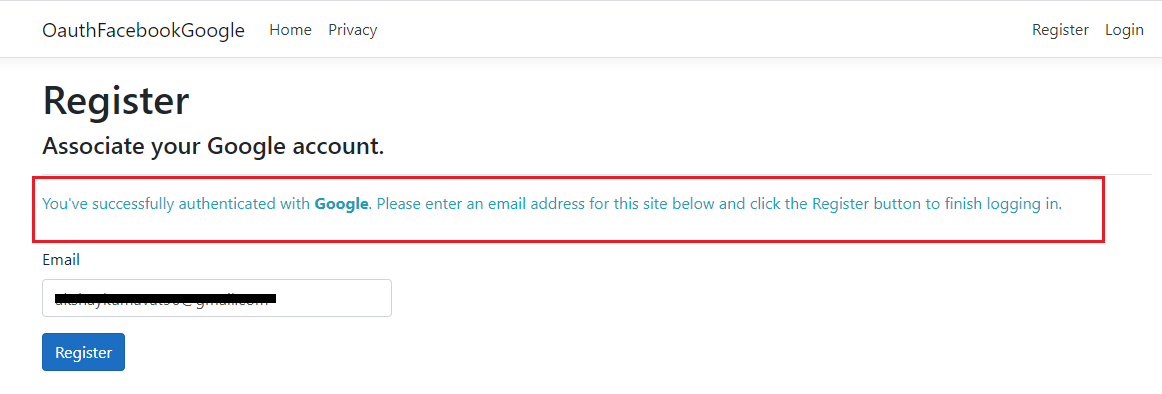
Once you logged in with Gmail Id then you will successfully authenticate with Google.
Step 13: Goto SQL Server Management
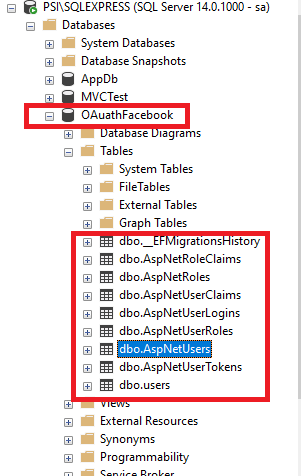
Now go to SQL Server Management Studio and let’s check our database Name “OAuthFacebook” and “Tables”.
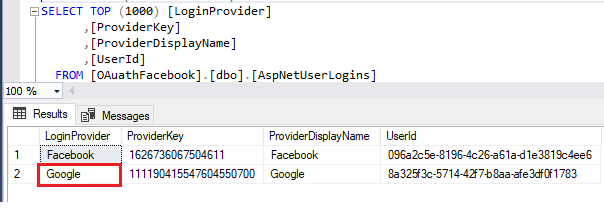
Now go to “AspNetUserLogins” and execute. We can see the following detail about Google.
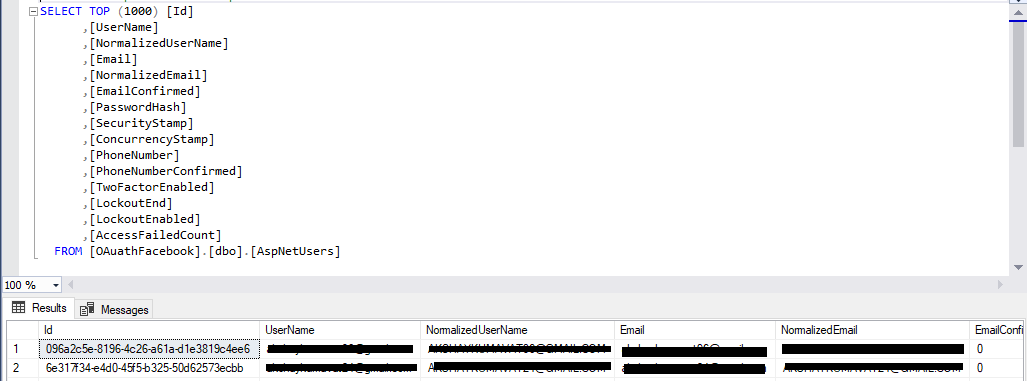
Also execute “AspNetUsers” table and see users are login.
That is it!